Described below are the steps we need to follow to create a button that will give us a 'still look'
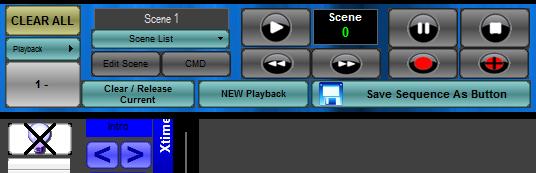
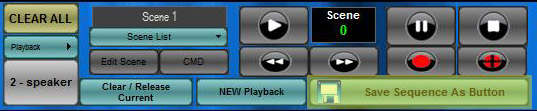
1. The first step we need to take when creating looks without the Sequence Wizard is to go to the Programming Mode Screen and press the Clear All Button. This clears all Sequences running and gives us a clear slate to create our new look. Advanced users may use the New Sequence Button, and not press Clear All to start a new playback to record to, and follow the same next steps bellow.
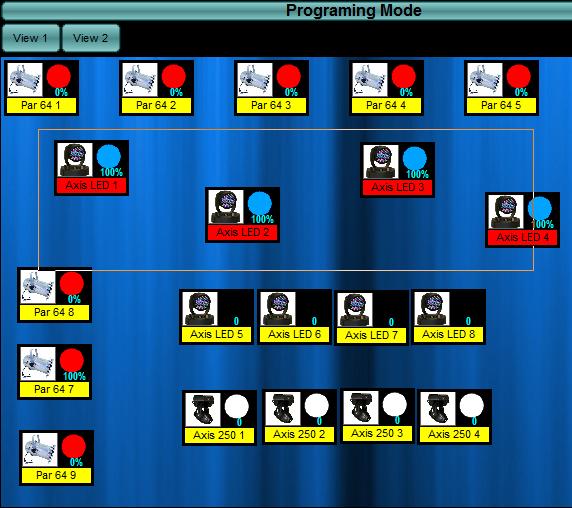
2. Next we will need to select the fixture we are going to use in this look. Using the Fixture Layout window, select all the fixtures needed. Use the rubber band and control keys to select more than one fixture, holding the control or 'Ctrl' button down while selecting fixtures selects more than on at a time. To clear selected fixtures, click anywhere on the Fixture Layout Window. The Fixture Layout window is shown below.
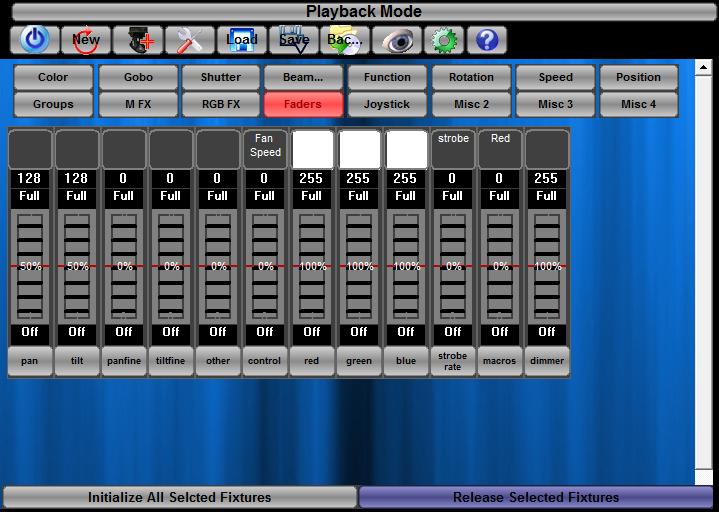
3. Now we need to initialize the selected fixture by pressing 'the initialize selected fixtures' button. If the fixtures do not completely initialize, meaning the shutter opens, the lamp is at full and the fixture is pointing down, use the faders preset tab to adjust the channels needed to initialize the fixture. Direct DMX Values can be entered by clicking in the dmx value - an input box will appear and ask for the new dmx value.
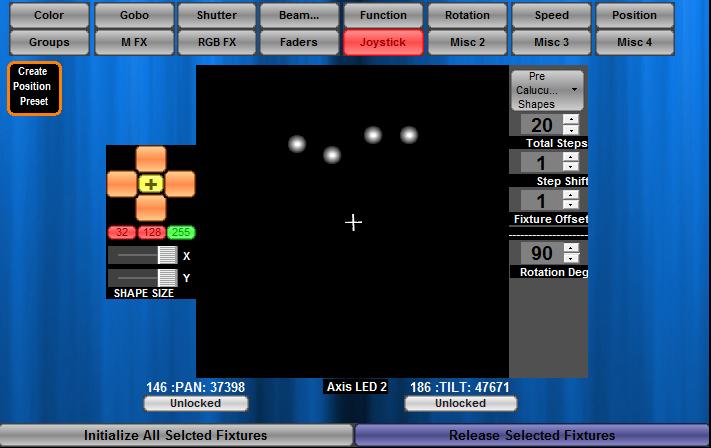
4. If we are positioning fixtures, click the joystick preset tab and use the joystick to move all the fixtures you need to place. The joystick works in two ways. It will allow you to move all the fixtures together when you move the mouse away from all the dots, or you can move one fixture at a time by clicking on the dot for each fixture and moving them one at a time. The up/down and left/right buttons on the left of the joystick panel, will also move all selected fixtures from the current position together the same amount from each fixtures starting position.
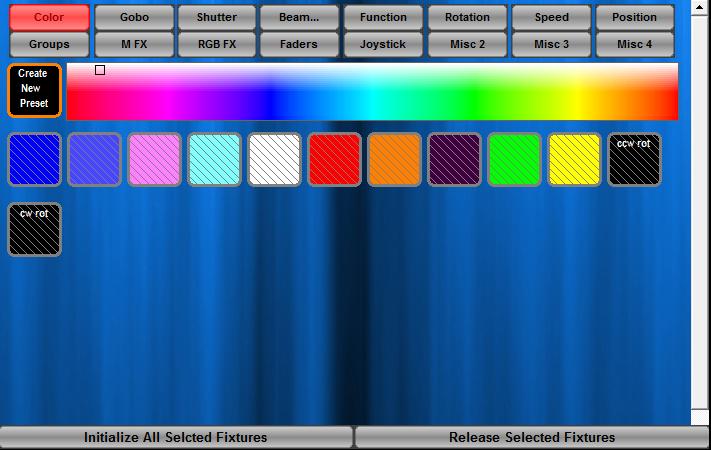
4. Once all the fixtures are in the position you need them to be, or it is a light with no position control all other properties can be adjusted, either by using the fader preset tab for direct fader control or by using the color, gobo, etc presets. Set all the channels/properties to the look you would like. This could entail selecting only odd fixtures and changing them one color while event fixtures can be another color. This applies for all types of channels. Below is the Preset palettes window, we can use this to alter any channel or property of the fixture we are trying to set a look or step for.
5. We can now save the look into a button for later recall. For a single step look all we have to do is press the Save Sequence as Button, button. If we were doing multiple scenes we would need to press the 'record plus'
button for each of the steps we want to record. That is covered in the next section.
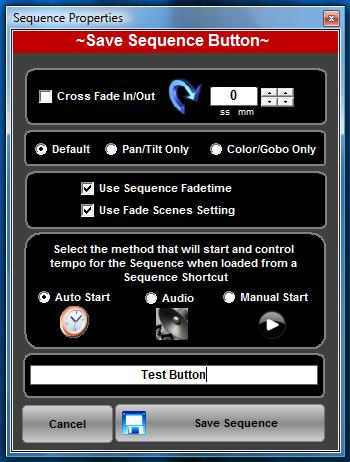
6. We will now see the dialog below pop up in the center of the screen.
We can now name the sequence button and save it.
Other option available here are:
Cross Fade In/Out This will cause this button to fade in and out according to the time specified Default, Pan/Tilt Only, Color/Gobo Only These option allows you to save all channels, save only pan and tilt channels, or save only color/Gobo and all other channels except Pan and tilt. Use Sequence Fade time This option will force the sequence to playback at the programmed Fade times Use Fade Scenes Setting This will fade from step to step on channels that are selected as fade channels. Pan, Tilt, Dimmer are all automatically set to be fade channels. Auto Start This will start the sequence steps running as soon as the button is pressed Audio Not Available in Enlighten Manual Start Will force the user to press the Go button on the Group Sub master to start the steps in the sequence. Once you have entered the name and set all desired parameters above, the screen will go to Playback mode and show the button in the new button area on the bottom right of the screen. Move the button anywhere on the screen and depress it. Now the button we created can be recalled as a still look.